
Hướng dẫn Cài đặt OpenMeetings trên ubuntu 18.04 LTS
OpenMeetings
OpenMeetings là một ứng dụng mã nguồn mở chạy trên nền web, được viết bằng Java, có thể được sử dụng để trình bày, đào tạo trực tuyến, hội thảo web, vẽ bảng trắng và chỉnh sửa tài liệu và chia sẻ máy tính để bàn của người dùng.
Openmeetings cung cấp hội nghị video, nhắn tin tức thời, bảng trắng, chỉnh sửa tài liệu hợp tác và các công cụ phần mềm nhóm khác bằng cách sử dụng các chức năng API của Red5 Streaming Server để từ xa và truyền phát.
OpenMeetings cung cấp nhiều tính năng như Hội nghị âm thanh và video, Ghi âm cuộc họp và chia sẻ màn hình, File Explorer, Hệ thống kiểm duyệt, Bảng trắng và trò chuyện, Quản lý người dùng và phòng, Trung tâm tin nhắn riêng tư, Bình chọn và Bình chọn, Sao lưu và nhiều hơn nữa.
Hướng dẫn cài đặt OpenMeetings on ubuntu 18.04 LTS
yêu cầu
một server chạy ubuntu 18.04 LTS\
Trước khi tiến hành cài đặt, chúng ta sẽ update OS
sudo apt update
sudo apt upgrade
1 Install java
Đầu tiên chúng ta cần cài đặt java, vì nó được viết bằng java nên cần có môi trường java để chạy.
sudo apt install default-jreplugin for web
sudo apt install icedtea-netxkiểm tra phiên bản java
java -version2 Install Dependencies
Installation of LibreOffice
sudo add-apt-repository ppa:libreoffice/ppa
sudo apt update
sudo apt install libreoffice
Installation ImageMagick and Sox
sudo apt install -y imagemagick libjpeg62 zlib1g-devĐể OpenMeetings có thể upload office files to whiteboard, chúng ta cần chỉnh sửa file
sudo nano /etc/ImageMagick-6/policy.xmltìm và sửa các dòng sau
<policy domain="coder" rights="none" pattern="PS" />
<policy domain="coder" rights="none" pattern="PDF" />
thành
<!-- <policy domain="coder" rights="none" pattern="PS" /> -->
<!-- <policy domain="coder" rights="none" pattern="PDF" /> -->
install SOX
sudo apt install soxInstallation of Adobe Flash Player
sudo apt install flashplugin-installerInstall some paquets and libraries
sudo apt -y --force-yes install autoconf automake build-essential libass-dev libfreetype6-dev libgpac-dev libsdl1.2-dev libtheora-dev libtool libva-dev libvdpau-dev libvorbis-dev libxcb1-dev libxcb-shm0-dev libxcb-xfixes0-dev pkg-config texi2html zlib1g-dev nasm libx264-dev cmake mercurial libopus-dev curl git vlc unzip make build-essential wget nmapTiếp theo, để các recoding sẽ lưu ở định dạng .mp4 chúng ta sẽ cài đặt thêm scripts
cd /optsudo wget https://cwiki.apache.org/confluence/download/attachments/27838216/ffmpeg_UbunDebi.shsudo chmod +x ffmpeg_UbunDebi.shsudo ./ffmpeg_UbunDebi.shNote: yêu cầu có kết nối internet
2 Install and Configure MariaDB
mình sẽ cài đặt mariaDB 10.4
Thêm Repo
sudo apt-get install software-properties-common

sudo apt-key adv --fetch-keys 'https://mariadb.org/mariadb_release_signing_key.asc'

sudo add-apt-repository 'deb [arch=amd64,arm64,ppc64el] http://mirror.truenetwork.ru/mariadb/repo/10.4/ubuntu bionic main'
Chạy lện sau để cài đặt mariaDB
sudo apt update

sudo apt install mariadb-server
Chúng ta cần thiết lập bảo mật cho mysql
mysql_secure_installationNote: các bạn tự thiết lập
Tiếp theo chúng ta cần thiết lâp mariaDB, tạo một database cho openmeetings
mysql -u root -p#create database
CREATE DATABASE openmeetings_db;
CREATE USER 'admin'@'localhost' IDENTIFIED BY '@Ad123456';
GRANT ALL PRIVILEGES ON snipeit_db.* TO 'admin'@'localhost' identified by '@Ad123456';
FLUSH PRIVILEGES;
exit3 Install OpenMeetings
Mình sẽ tạo một thư mục cài đặt OpenMeetings
sudo mkdir /opt/insOMthiết lập quyền
sudo chown -R nobody /opt/insOMTruy cập trang chủ của Openmeetings để download phiên bản mới nhất tại đây
wget https://downloads.apache.org/openmeetings/4.0.10/bin/apache-openmeetings-4.0.10.tar.gzGiải nén file
sudo tar xzvf apache-openmeetings-4.0.10.tar.gzDi chuyển vào /opt
sudo mv apache-openmeetings-4.0.10.tar.gz /optTiếp theo tải và cài đặt connector giữa OpenMeetings and MariaDB
cd /optsudo wget https://repo1.maven.org/maven2/mysql/mysql-connector-java/5.1.48/mysql-connectorjava-5.1.48.jarxong copy vào thư mục cài đặt
sudo cp /opt/mysql-connector-java-5.1.48.jar /opt/insOM/webapps/openmeetings/WEB-INF/libTải red5 run script
cd /optsudo wget https://cwiki.apache.org/confluence/download/attachments/27838216/red5-ubdeb2và copy vào
sudo cp red5-ubdeb2 /etc/init.d/sudo chmod +x /etc/init.d/red5-ubdeb2Tiếp theo khởi động lại mariaDB
sudo /etc/init.d/mysql startChạy red5-OpenMeetings
sudo /etc/init.d/red5-ubdeb2 startSau khi cài đặt xong, các bạn truy cập OpenMeetings thông qua web interface
Note: OpenMeetings started and listening on port 1935 and 5080
Mở trình duyệt và nhập vào url http://your-server-ip:5080/openmeetings
Tiến hành làm theo hướng dẫn, chọn database chúng ta đã tạo ở trên
tạo use and group
Các thông tin khác thường để mặc định
Tại màn hình convertors
ImageMagick Path = /usr/bin
FFMPEG Path = /usr/local/bin
SOX Path = /usr/bin
OpenOffice/LibreOffice Path for jodconverter = /usr/lib/libreoffice
Lưu ý
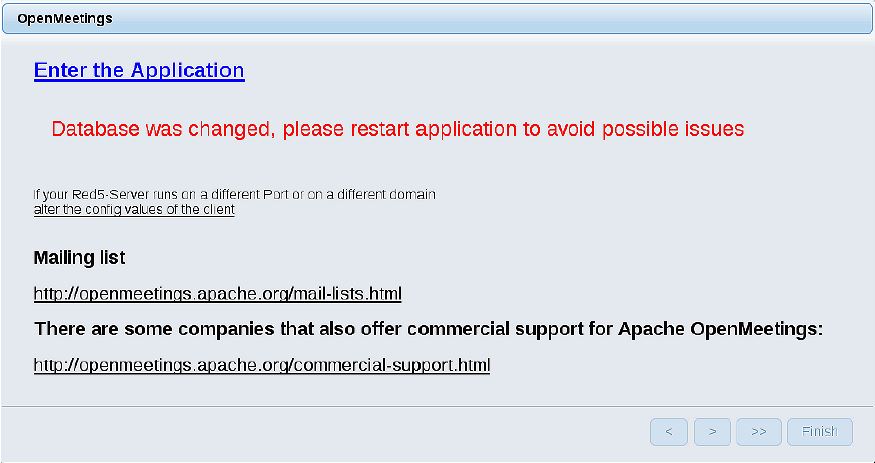
Tại màn hình cuối cùng sau khi click vào finish một màn hình sẽ hiện lên, các bạn không được click vào Enter the Application., mà chúng ta cần chạy lệnh sau rồi mới click vào Enter the Application.
sudo /etc/init.d/red5-ubdeb2 restartok xong click vào Enter the Application
Video cài đặt OpenMeetings
Note
Since Version 2.0 you can also install OpenMeetings from command line. Just cd to the unpacked archive and type ./admin.sh or admin.bat, please see Command Line Admin for more options
